
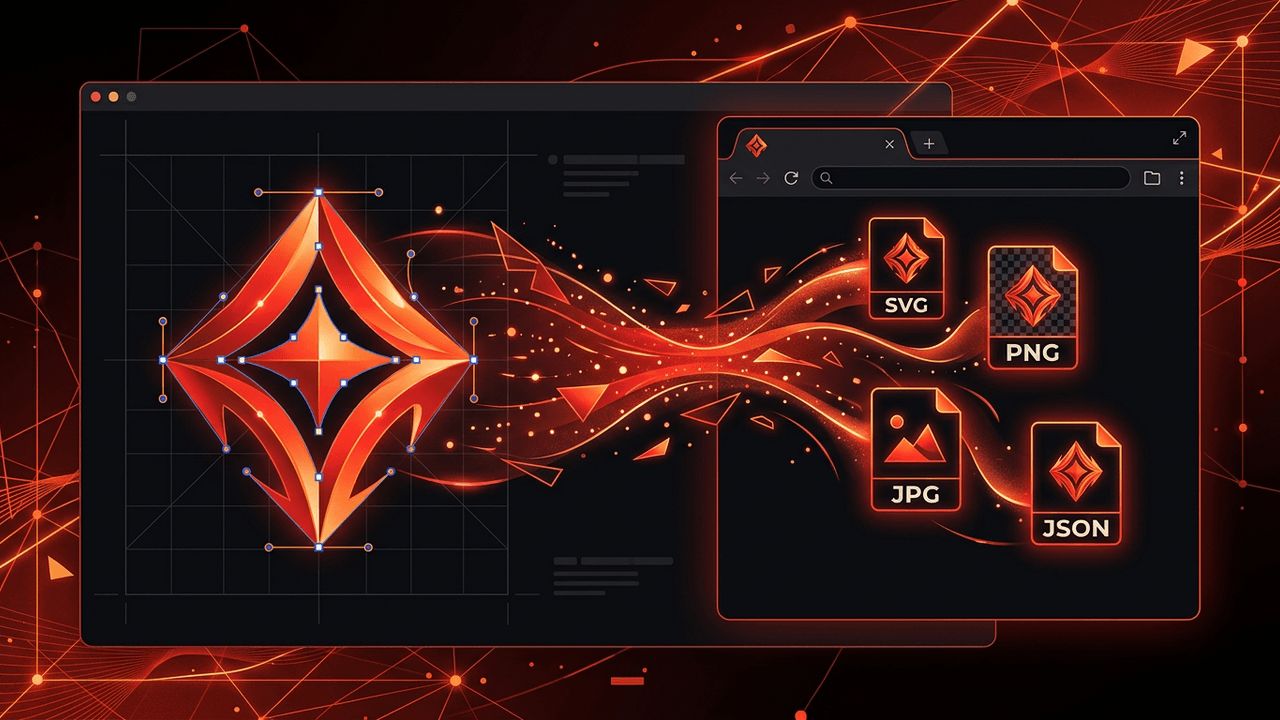
Your logo is often the first visual element visitors notice on your website. If it appears blurry, pixelated, or slow to load, it undermines your brand before a single word is read. Adobe Illustrator is the industry standard for creating logos because it produces vector artwork that can scale infinitely. However, exporting that artwork correctly for the web takes a little know-how. This guide explains how to prepare your file, choose the right format, and export a logo that looks sharp on every screen while loading quickly.
AAMAX.CO: Bringing Your Brand to Life Online
A perfectly exported logo is just one part of a strong online brand. AAMAX.CO is a full-service digital marketing company that provides web development, digital marketing, and SEO services worldwide. Their designers and developers ensure brand assets are optimized, consistent, and displayed beautifully across devices. Businesses seeking cohesive, brand-focused website design can rely on them to integrate logos, typography, and imagery into a professional and high-performing site.
Choosing the Right File Format
Before exporting, decide which format best suits your needs. Each has strengths for web use:
- SVG (Scalable Vector Graphics): The best choice for most logos. SVGs are resolution-independent, so they stay crisp on high-density displays, and they are usually very small in file size. They can also be styled and animated with CSS.
- PNG: A raster format that supports transparency. Use PNG when the logo contains complex effects that do not translate well to SVG, or when a platform does not accept SVG uploads.
- WebP: A modern raster format that offers smaller file sizes than PNG with transparency support. Great for performance when raster output is required.
- JPG: Generally not recommended for logos because it does not support transparency and introduces compression artifacts around sharp edges.
Preparing Your Illustrator File
Clean preparation leads to clean exports. Start by making sure your logo artwork is finalized and organized. Remove hidden layers, stray points, and unused swatches. Convert text to outlines by selecting the type and choosing Type > Create Outlines, so fonts render correctly even on devices that do not have them installed. Keep a separate, editable master file before outlining.
Next, fit the artboard tightly around the logo. Select the artwork and choose Object > Artboards > Fit to Artwork Bounds. This removes extra white space that would otherwise make the logo appear smaller or misaligned on the website. If you need multiple versions, such as a horizontal logo, stacked logo, and icon, place each on its own artboard and name them clearly.
How to Export an SVG Logo
Illustrator offers several ways to export SVG, but the most web-friendly option is File > Export > Export As, then choose SVG and check "Use Artboards." In the SVG Options dialog, use these recommended settings:
- Styling: Presentation Attributes or Internal CSS for broad compatibility.
- Font: Convert to Outlines.
- Images: Embed, if any raster images are included.
- Object IDs: Minimal, to keep the code lean.
- Decimal: 2 or 3, which balances precision and file size.
- Minify and Responsive: Checked.
After export, you can further optimize the file with tools like SVGO or SVGOMG, which remove unnecessary metadata and reduce file size without changing the appearance.
How to Export a PNG or WebP Logo
When you need a raster version, use File > Export > Export for Screens. This panel lets you export multiple artboards and sizes at once. Choose PNG or WebP as the format and add scale options such as 1x, 2x, and 3x. The higher scales ensure your logo looks sharp on Retina and other high-density displays. Make sure the background is set to transparent and anti-aliasing is set to "Art Optimized" for smooth edges.
A practical approach is to export the logo at roughly twice the size it will be displayed on the website. For example, if the logo appears at 200 pixels wide in the header, export a 400-pixel version and let the browser scale it down.
Optimizing Logos for Performance
Even small images affect page speed. Run raster exports through compression tools such as TinyPNG or Squoosh to reduce file sizes further. Keep SVG files simple by reducing unnecessary anchor points with Object > Path > Simplify where appropriate. Avoid embedding large raster images inside SVGs, as this defeats the purpose of using a vector format.
Creating a Favicon and App Icons
Your logo also needs to work at tiny sizes for browser tabs and home screen shortcuts. Create a simplified icon version of your logo on a square artboard. Export it as an SVG favicon and as PNG files at sizes like 32x32, 180x180 for Apple touch icons, and 512x512 for web app manifests. Simplified shapes and strong contrast keep the icon recognizable at small sizes.
Adding the Logo to Your Website
Once exported, add the logo to your site with a standard image tag and descriptive alt text, such as the company name. Alternatively, you can inline the SVG code directly in HTML to allow CSS color changes for dark mode or hover effects. Always specify width and height attributes to prevent layout shifts while the page loads. If you are planning a broader rebuild, professional website development can ensure brand assets are implemented consistently across templates.
Common Mistakes to Avoid
Avoid exporting with excess artboard space, leaving text as live fonts, using JPG for transparent logos, and exporting raster files at only 1x resolution. Also avoid uploading uncompressed files that slow down your homepage. These small oversights can make an otherwise excellent logo look unprofessional.
Conclusion
Exporting a logo from Illustrator for the web comes down to clean preparation, choosing the right format, and optimizing the result. SVG is ideal for most situations thanks to its scalability and small size, while PNG and WebP serve as reliable raster alternatives. By outlining text, fitting artboards, exporting at multiple scales, and compressing files, you will ensure your logo looks sharp, loads quickly, and represents your brand with confidence.