
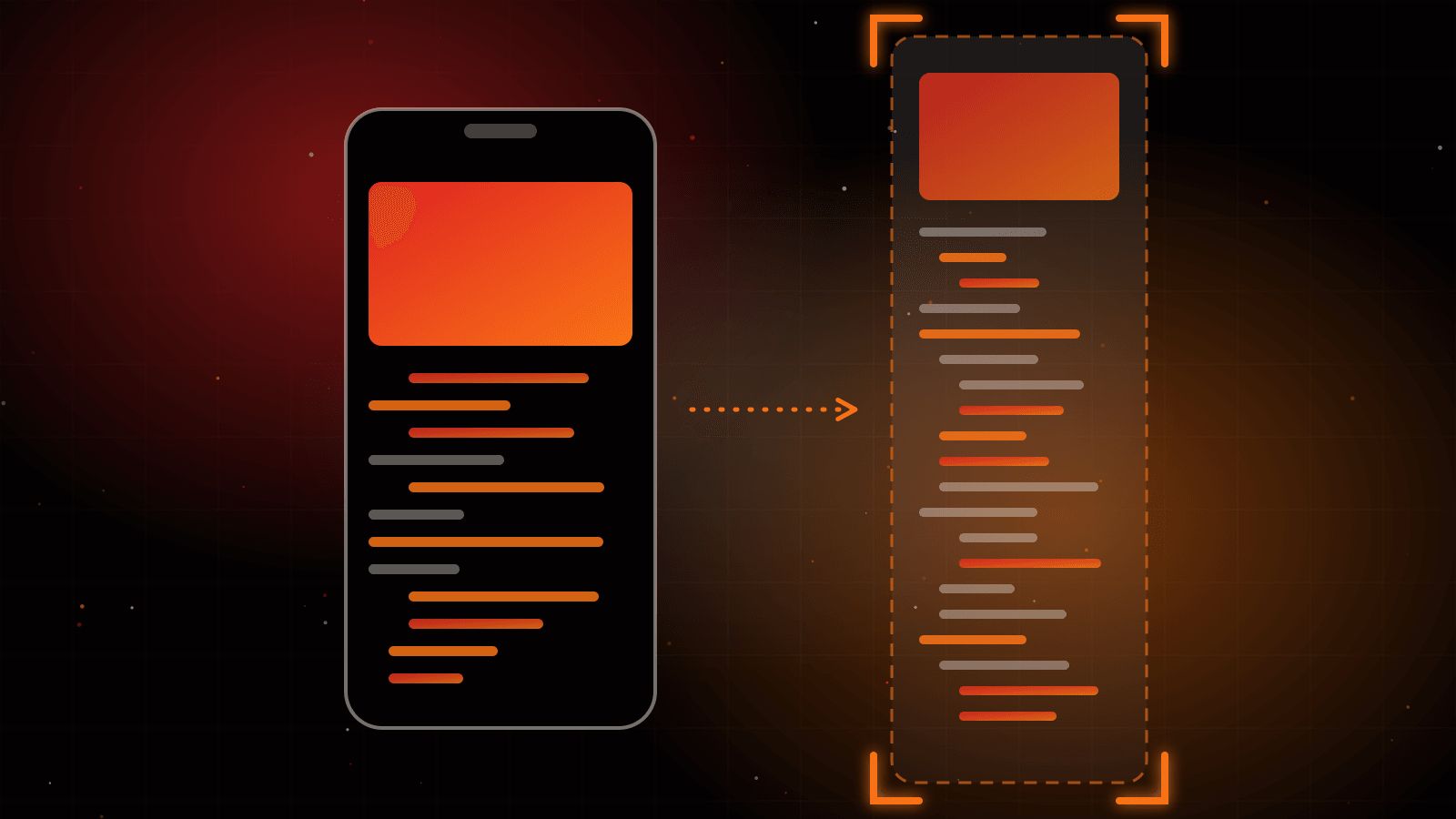
More people now browse the web on phones than on computers, yet many still believe that capturing an entire web page is only possible on a desktop. In reality, iPhones, iPads, and Android devices all offer ways to grab a full-length page, and desktop operating systems have their own tricks too. Whether you want to save an article to read offline, share a product page with a friend, or document a mobile layout issue for your web team, this guide explains how to screen grab an entire web page on every major device.
Why AAMAX.CO Focuses on Mobile-First Web Experiences
When you screen grab a web page on your phone, every layout flaw becomes obvious. AAMAX.CO is a full service digital marketing company providing web development, digital marketing, and SEO services worldwide. Their team designs and builds responsive websites that look great on phones, tablets, and desktops alike, with fast load times and intuitive navigation. If your mobile pages feel cramped or broken, their website development services can deliver a modern, mobile-first experience that keeps visitors engaged.
How to Screen Grab an Entire Web Page on iPhone and iPad
Apple includes a built-in full-page option for Safari:
- Open the web page in Safari.
- Take a screenshot by pressing the Side button and Volume Up together, or the Home and Side buttons on older models.
- Tap the screenshot thumbnail that appears in the corner.
- Select the Full Page tab at the top of the editor.
- Use the preview strip on the right to review the full page, mark it up if needed, then tap Done.
- Choose Save PDF to Files to store the full page.
The full-page capture is saved as a PDF, which keeps text crisp and selectable. Recent iOS versions may also offer saving the full page to Photos as an image. The Full Page option also works in some other apps, including Chrome on iOS for many pages.
How to Screen Grab an Entire Web Page on Android
Most modern Android phones support scrolling screenshots, although the name varies by manufacturer:
- Take a regular screenshot by pressing Power and Volume Down together.
- Look for a button labeled Capture more, Scroll capture, Scrolling screenshot, or a downward arrow icon in the screenshot toolbar.
- Tap it repeatedly, or drag the selection, to extend the capture down the page.
- Stop when you reach the bottom, then save or share the image.
Pixel phones show "Capture more" for supported apps, Samsung Galaxy devices use the scroll capture arrow, and brands like OnePlus, Xiaomi, and Motorola have similar features. Chrome on Android also supports a long screenshot option via the Share menu on many versions, letting you choose the exact area to include.
How to Screen Grab an Entire Web Page on Windows
Windows' Snipping Tool captures only what is visible, so for an entire web page use your browser:
- In Microsoft Edge, press Ctrl+Shift+S and select Capture full page.
- In Firefox, right-click, choose Take Screenshot, and click Save full page.
- In Chrome, open DevTools, open the command menu, and run Capture full size screenshot.
For capturing long content in desktop apps outside the browser, free tools like ShareX offer scrolling capture.
How to Screen Grab an Entire Web Page on Mac
The macOS screenshot toolbar, opened with Cmd+Shift+5, captures visible areas only. For entire pages:
- Use Firefox or Chrome DevTools as described above.
- In Safari, use File, Export as PDF to save the whole page.
- Try apps such as CleanShot X for scrolling capture across any application.
Saving as PDF vs Saving as an Image
Choosing the right format depends on your purpose:
- PDF keeps text selectable and searchable, preserves links, and handles very long pages well. It is ideal for articles, receipts, and documentation.
- Images such as PNG or JPG are better for sharing on social media or messaging apps, design reviews, and visual comparisons.
On any device, you can also use the browser's Print option and choose "Save as PDF" as the destination, although print stylesheets may alter the layout compared to what you see on screen.
Third-Party Apps for Long Screenshots
If your device lacks a built-in option, apps can help. On Android, apps like LongShot stitch screenshots automatically. On iOS, apps like Picsew and Tailor combine multiple screenshots into one long image. Browser extensions such as GoFullPage serve the same purpose on desktops. Always check app permissions and reviews before installing.
Troubleshooting Tips
- Full Page option missing on iPhone: Make sure you took the screenshot in Safari or a supported app and tapped the thumbnail quickly.
- Scrolling capture stops early: Some pages use custom scrolling containers or infinite scroll that block the feature. Try a PDF export instead.
- Blank or missing images: Scroll through the page first so lazy-loaded images load before capturing.
- Repeated headers: Sticky navigation bars can appear multiple times in stitched captures. Desktop browser tools usually handle this better.
Conclusion
Screen grabbing an entire web page is easy on every major device once you know the right feature: Full Page in iPhone Safari, scrolling screenshots on Android, and built-in browser tools on Windows and Mac. Choose PDF for readable, searchable archives and images for quick visual sharing. With these techniques, you will never again need to piece together a dozen partial screenshots.